



Ending Workplace Neck Strain for Bifocal and Reader Users
TL;DR: Your Quick Guide to Eliminating Neck Strain
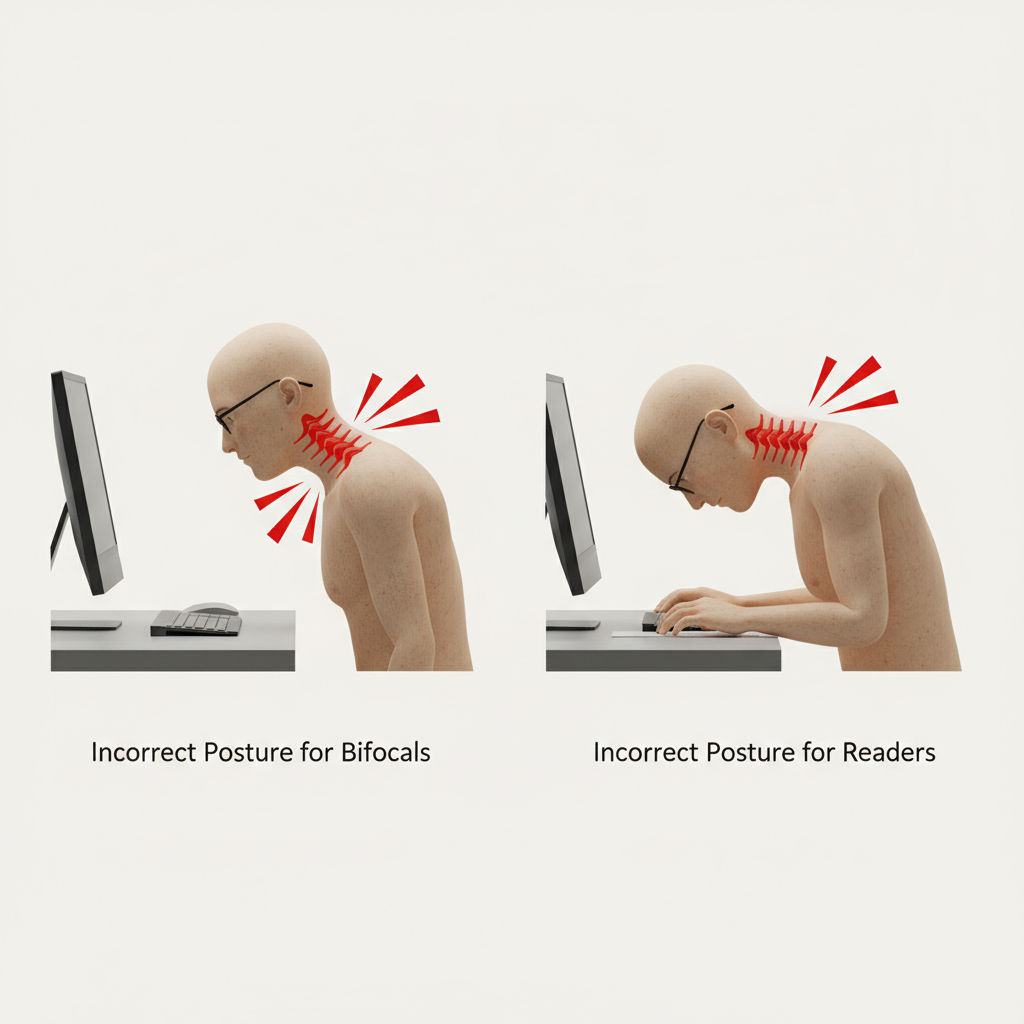
- The Problem: If you wear bifocals, your monitor is likely too high, forcing you to tilt your head back. If you use reading glasses, your documents are probably flat on the desk, forcing you to hunch over. Both postures lead to chronic neck and shoulder pain.
- The Sweet Spot: The ideal ergonomic position for your eyes and neck is a 15-to-20-degree downward gaze from a neutral, straight-ahead position.
- The Fix for Bifocals: Lower your monitor so the top of the screen is at or just below your horizontal eye level. This allows you to view the screen through the bottom (near-vision) part of your lenses without tilting your head back.
- The Fix for Readers: Use a document holder to prop up papers and books, placing them next to your monitor at a comfortable reading angle and height. This prevents you from craning your neck down.
- The Final Polish: Ensure your glasses are properly adjusted. An incorrect "pantoscopic tilt" (the angle of the frame on your face) can misalign the lens's optical center, forcing you into bad posture to see clearly.
That persistent ache in your neck and shoulders after a day at the computer isn't just a sign of a long workday. For millions of people who rely on bifocals, progressives, or reading glasses, it's often a direct result of a fundamental conflict between their eyewear and their workstation setup. You're caught in an ergonomic trap: to see clearly, you're forced into postures that strain your body.
This isn't just a minor inconvenience. According to the latest data from the U.S. Bureau of Labor Statistics, musculoskeletal issues, including back and neck injuries, are a leading cause of nonfatal workplace injuries that result in days away from work. While we often blame the chair or the desk, the true culprit is frequently the interaction between your eyes, your lenses, and the position of your work.
This guide breaks down the science behind this specific type of strain and provides a clear, step-by-step checklist to reconfigure your workspace. The goal is simple: to make your environment work with your glasses, finally ending the cycle of pain and discomfort.
Why Your Glasses Are Secretly Causing Neck Pain
The design of multifocal and reading lenses is precise, optimized for specific lines of sight. When your workstation isn't set up to respect these zones, your body compensates by contorting itself into unnatural positions, leading directly to strain.
For Bifocal and Progressive Wearers: The Head-Back Tilt
Standard ergonomic advice often suggests placing the top of your monitor at eye level. This is a disaster for bifocal users. These lenses place the prescription for near vision in the bottom half of the lens. To see an eye-level monitor through this segment, you have no choice but to tilt your head backward, compressing the vertebrae in your cervical spine. Repeating this posture for hours a day is a direct recipe for neck pain, shoulder tension, and headaches.
For Reading Glass Wearers: The Downward Hunch
Single-vision reading glasses provide a wide, clear field of view for near tasks. However, if your documents or books are lying flat on your desk, you must constantly crane your neck downward and forward to get into the right focal range. This posture, known as cervical flexion, puts immense strain on your neck, upper back, and shoulder muscles.
The 4-Step Checklist to a Pain-Free Workstation
Reclaiming your comfort doesn't require expensive new equipment; it requires a systematic approach to adjustment. Follow these steps in order to create a foundation for good posture that aligns with your specific visual needs. The entire process is guided by principles of adjustability laid out in ergonomic standards like ANSI/HFES 100-2007, which emphasizes fitting the workstation to the user.
Step 1: Calibrate Your Chair as the Anchor Point
Before you touch your monitor, anchor your posture. Your chair is the foundation of your entire ergonomic system.
- Height: Adjust your seat so your feet are flat on the floor and your knees are at roughly a 90-degree angle. You should not be on your tiptoes or have your knees high in the air.
- Depth: Your back should be firmly against the lumbar support with a few inches of space between the front edge of the seat and the back of your knees.
- Armrests: Adjust them so your elbows are supported at a 90-degree angle, allowing your shoulders to remain relaxed and down, not hunched.
Step 2: Position Your Monitor (For Bifocal & Progressive Users)
This is the most critical step for multifocal lens wearers. The goal is to bring the screen into the reading portion of your lens without forcing head movement.
- Lower the Monitor: Forget the old "eye-level" rule. Adjust your monitor so the top of the screen is at or, in many cases, several inches below your horizontal line of sight.
- Find the Gaze Angle: Your target is to be able to see the center of the screen with a comfortable, 15-to-20-degree downward gaze. This angle minimizes both neck strain and accommodative demand on the eyes.
- Use a Monitor Arm: An adjustable monitor arm is the single best tool for this. Research has shown that adjustable monitor arms significantly reduce musculoskeletal discomfort and symptoms of Computer Vision Syndrome. They provide the flexibility to find your perfect height and angle, which is nearly impossible with a standard monitor stand.
Step 3: Elevate Your Documents (For Reading Glass Users)
For those who use single-vision readers, the focus shifts from the monitor to your papers.
- Use a Document Holder: Place an upright document holder directly next to your monitor.
- Match the Height: Position the holder so your documents are at the same height and angle as your screen. This creates a consistent visual field, allowing you to move your eyes between your screen and papers without drastic head or neck movements.
Step 4: Add "Active Blinking" to the 20-20-20 Rule
The famous "20-20-20 rule"—looking at something 20 feet away for 20 seconds every 20 minutes—is great for relaxing the focusing muscles in your eyes. However, it doesn't address the other major issue with screen time: dry eye.
When we stare at screens, our blink rate plummets from a normal 15 times per minute to as low as 5-7 times per minute, according to the American Academy of Ophthalmology. This incomplete and infrequent blinking prevents a stable layer of tears from protecting the cornea.
- The Fix: Practice "active blinking." Every so often, consciously make several slow, deliberate, full blinks, as if you are gently squeezing your eyelids shut and then opening them again. This re-establishes the tear film and is a powerful antidote to digital dryness and irritation.
Why Your Frame's Fit is as Important as Your Chair's
Even with a perfect workstation, you can still experience strain if your glasses themselves are poorly adjusted. The way a frame sits on your face directly impacts the lens optics.
One of the most overlooked factors is Pantoscopic Tilt. This is the angle created by tilting the bottom of your eyeglass frames toward your cheeks. A small amount of tilt (around 8-12 degrees) is standard and helps light enter the eye correctly.
However, if the tilt is too great or too little, it shifts the optical center of the lens away from your pupil. Your brain senses this slight distortion and, subconsciously, you will tilt your head to find the "clear spot" again, completely undoing all your careful ergonomic adjustments and reintroducing neck strain.
An optician can easily adjust the pantoscopic tilt. When you get new glasses, be sure to mention your primary work posture (e.g., "I work at a computer all day") so they can fine-tune the fit for your specific line of sight.
Troubleshooting Common Ergonomic Challenges
"I use a laptop. How can I fix my posture?"
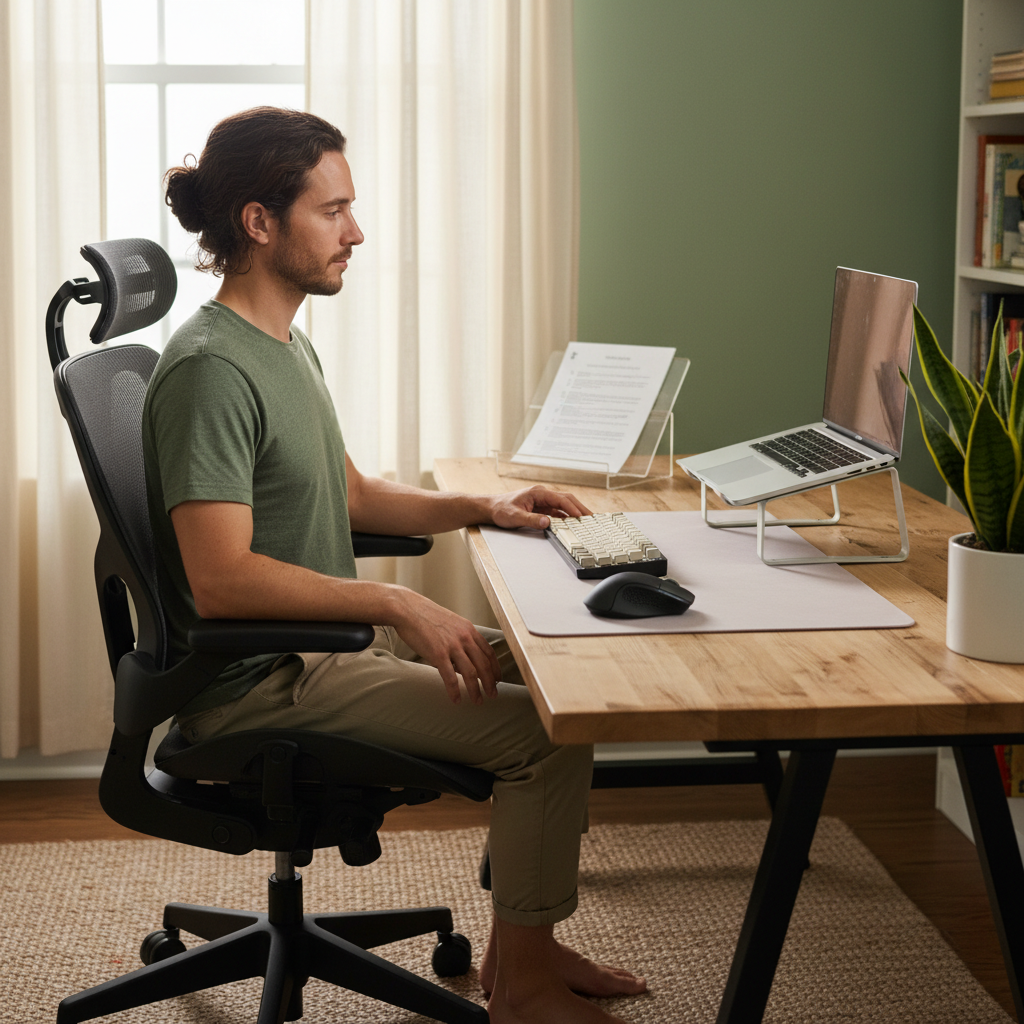
A laptop is an ergonomic nightmare because its screen and keyboard are fused together. To work safely for long periods, you must "decouple" them, as recommended by ergonomics experts at Boston University and other institutions. Invest in an external keyboard, an external mouse, and a laptop stand. This allows you to place the screen at the correct height and distance while keeping the keyboard at a comfortable typing position.
"What about my contact lenses?"
While contact lenses solve the optical zone issue of bifocals, they present another challenge: dryness. The reduced blink rate during screen use can make contacts feel dry and gritty. The American Academy of Ophthalmology often suggests switching to glasses for long computer sessions to give your corneas a rest and reduce dryness.
"My office has terrible glare. What can I do?"
Glare from overhead lights or windows is a major cause of ergonomic problems, as it forces you to adopt awkward postures to see your screen. Controlling glare is crucial. Close blinds, reposition your desk so windows are to your side (not in front or behind), and if you can't control the source, use an anti-glare screen filter.
Your Workstation Should Serve You, Not Strain You
Chronic neck pain is not an inevitable price for working at a computer, nor is it a required side effect of wearing bifocals or reading glasses. It is a clear signal of a mismatch between your tools and your body. By understanding the unique visual demands of your specific lenses, you can take deliberate, simple steps to re-engineer your workspace.
By adjusting your chair, monitor, and documents to achieve the correct downward gaze angle, you align your posture with your optics. This small investment of time to audit and adjust your setup can provide an immediate and lasting return in comfort, focus, and productivity, finally putting an end to the daily battle with neck strain.
Disclaimer: This article is for informational purposes only and does not constitute professional medical advice. The ergonomic suggestions provided are based on common best practices, but individual needs may vary. If you experience chronic or severe pain, or if you have pre-existing musculoskeletal conditions, please consult with a qualified physician or physical therapist before making significant changes to your workstation.
References
- U.S. Bureau of Labor Statistics. (2023). Employer-Reported Workplace Injuries and Illnesses. Retrieved from https://www.bls.gov/news.release/osh.nr0.htm
- Human Factors and Ergonomics Society. (2007). ANSI/HFES 100-2007 Human Factors Engineering of Computer Workstations. Retrieved from https://webstore.ansi.org/standards/hfes/ansihfes1002007
- American Academy of Ophthalmology. Computers, Digital Devices and Eye Strain. Retrieved from https://www.aao.org/eye-health/tips-prevention/computer-usage
- Boston University. (2008). Is Your Laptop Hurting You? Retrieved from https://www.bu.edu/articles/2008/is-your-laptop-hurting-you/
- American Academy of Ophthalmology. Digital Devices and Your Eyes. Retrieved from https://www.aao.org/eye-health/tips-prevention/digital-devices-your-eyes