



Monitor Height and Vision: Ergonomics for Progressive Lenses
The Progressive Lens Problem: Why Your Neck Hurts at Your Desk
If you wear progressive lenses, you likely appreciate the seamless transition from seeing a distant horizon to reading a nearby book. But that convenience can vanish at your computer, replaced by a persistent ache in your neck and shoulders. This discomfort isn't a sign you need to work less; it's a sign your workspace is fighting your eyewear.
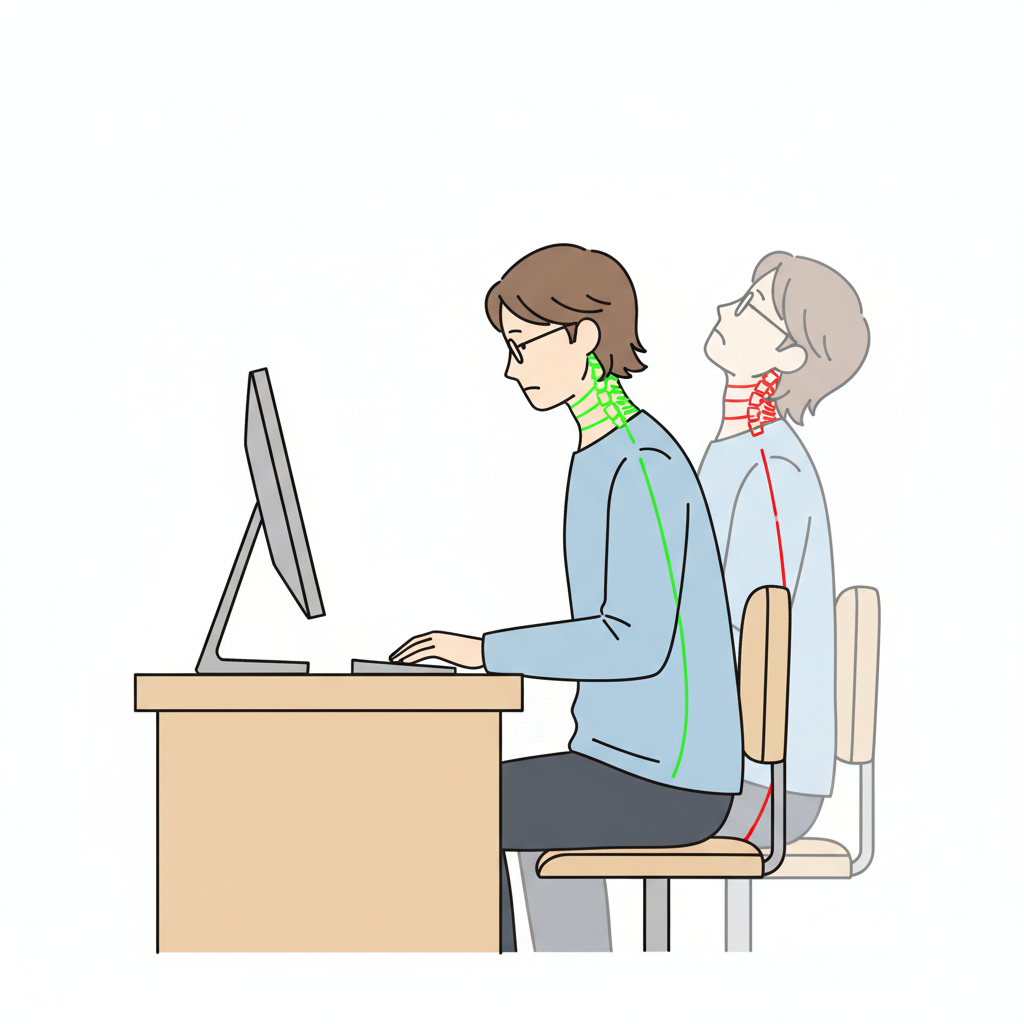
Standard ergonomic advice, which often suggests positioning the top of your monitor at eye level, is the primary culprit. This setup forces you to tilt your head back to find the narrow "near" portion at the bottom of your lenses, creating a cascade of musculoskeletal strain. A study on sit-stand desks found that while they can reduce back pain, improper monitor height negates many benefits, with 60% of users reporting pain at baseline. The issue is compounded by the nature of digital work, where your blink rate can drop from a normal 15 times per minute to as low as 5, leading to severe dry eye, as noted by the American Academy of Ophthalmology (AAO).
This guide breaks down the science behind this common problem and provides a new, lens-aware framework for positioning your monitor. By aligning your screen with how your progressive lenses are designed to be used, you can eliminate neck strain and create a truly comfortable and productive digital workspace.
Understanding Your Lenses: A Tale of Three Zones
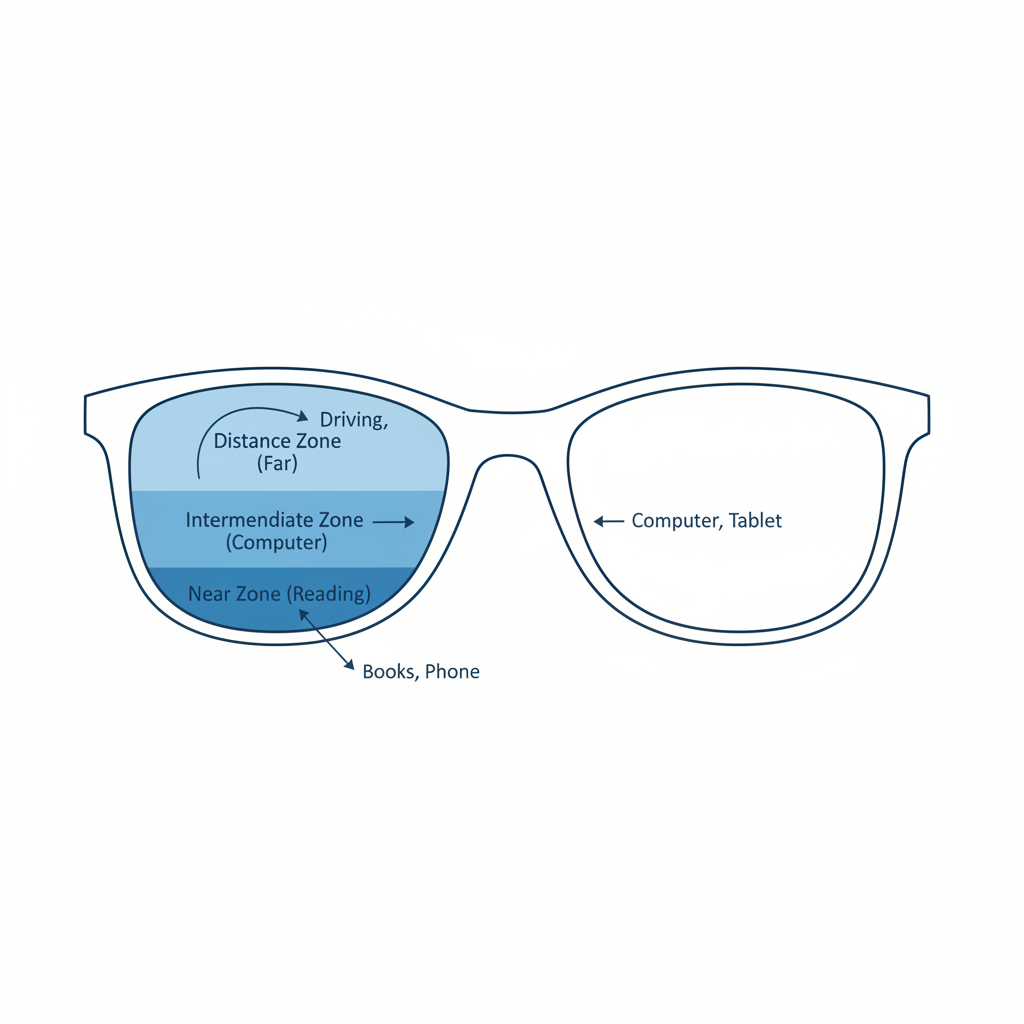
Before we can fix the problem, we must understand the tool. A progressive lens isn't one single prescription; it's a sophisticated gradient of optical power, divided into three main functional zones:
- Distance Zone (Top): The largest portion of the lens, located at the top. You look straight through this part to see things clearly across the room, drive, or watch television. When you sit at your desk and look straight ahead, you are engaging this zone.
- Near Zone (Bottom): A small, highly magnified area at the very bottom of the lens, designed for close-up tasks like reading a book or a smartphone held in your lap. To use this zone, your eyes must look significantly downward.
- Intermediate Zone (Middle): The crucial, often-overlooked corridor of power that connects the distance and near zones. This section is specifically designed for arm's-length vision—the exact distance at which most people place their computer monitors.
The core ergonomic conflict arises when your monitor is placed too high. To see it, your eyes naturally look through the "distance" zone, rendering the screen blurry. To compensate, you unconsciously tilt your head back, forcing your eyes downward to use the "near" zone. This unnatural posture, held for hours, is the direct cause of what is often called "tech neck" or cervical strain.
The Solution: The Intermediate Zone Alignment Rule
The most critical adjustment for any progressive lens wearer is to abandon the "top-of-screen-at-eye-level" rule. Instead, you must position your monitor so that your primary task area falls directly in your intermediate visual zone.
Expert Insight: Based on clinical fitting experience, the sweet spot for most users is when the primary work area on the screen (e.g., the browser's address bar or the line of text you are typing) is positioned about 10-15 degrees below your horizontal line of sight. This allows you to view the screen through the intermediate corridor with a neutral neck posture.
Step-by-Step Guide to Perfect Monitor Placement:
- Assume the Position: Sit in your chair with your back straight and feet flat on the floor, as recommended by ergonomic guidelines like the ANSI/HFES 100-2007 standard. Look straight ahead. This is your neutral horizontal sightline.
- Identify Your Target: Open a document or web browser on your screen. Identify the line or area you look at most frequently. This is your "ergonomic focal point."
- Lower the Monitor: Begin lowering your monitor. As you do, you should feel your head and neck relax as you no longer need to tilt your head back. Your gaze should naturally drop slightly downwards.
- Find the Sweet Spot: Continue lowering the screen until your "ergonomic focal point" becomes perfectly clear and sharp without any head movement. Your eyes should feel relaxed, and your neck should be in a neutral, comfortable position. This is your ideal monitor height.
- Check the Distance: Ensure the monitor is at a comfortable viewing distance, typically about an arm's length away. Small screens on laptops or phones significantly increase visual fatigue and should be avoided for long work sessions.
For laptop users, this setup is impossible without external hardware. Boston University experts stress the importance of "decoupling" the screen from the keyboard. Using an external keyboard, mouse, and a laptop stand or separate monitor is non-negotiable for ergonomic safety.
Advanced Setups for Power Users and High Prescriptions
The "one size fits all" approach unravels for users with stronger prescriptions or more complex workflows. The higher your "Add" power (the number on your prescription indicating the strength of your reading zone, typically +2.00 and above), the narrower your intermediate and near zones become.
For High-Add Power Wearers (+2.50 and up):
Your intermediate corridor is significantly smaller, demanding more precise monitor placement. You may find that a single monitor cannot comfortably accommodate all your tasks.
-
The Dual-Monitor Solution: A highly effective strategy is to use two monitors stacked vertically.
- Primary Monitor: Position your main work monitor even lower than you would normally, so it aligns perfectly with your narrow intermediate zone.
- Secondary Monitor: Place a second monitor below the first one. This screen can be used for reference materials, emails, or chat applications, aligning with your powerful but small "near" zone. This setup mimics a traditional bifocal segment, dedicating a specific screen to a specific lens zone.
Office Lenses vs. General-Purpose Progressives:
Not all progressive lenses are created equal. "Office" or "computer" progressive lenses are specifically designed for desk work. They feature a much larger intermediate zone at the expense of the distance zone. If you spend most of your day in front of a screen, investing in a dedicated pair of computer progressives can provide a significantly wider field of comfortable vision, reducing the need for precise head positioning.
A Holistic Approach to Digital Vision Wellness
Correct monitor height is the cornerstone of comfort, but it works best as part of a comprehensive ergonomic strategy.
- Embrace Dynamic Movement: Even with perfect posture, prolonged static sitting is harmful. The Mayo Clinic advises breaking up sedentary time by standing or walking for at least five minutes every hour. A sit-stand desk can be a powerful tool, but only if you use it. Studies show these desks can reduce lower back pain from 60% to 30% by decreasing sedentary time by over an hour a day.
- Practice the 20-20-20 Rule: To combat digital eye strain, the American Academy of Ophthalmology recommends that every 20 minutes, you look at something 20 feet away for at least 20 seconds. This simple exercise relaxes the focusing muscles inside your eyes.
- Control Your Lighting: According to OSHA, lighting for screen-based work should be lower than for paper tasks to avoid glare and washout. Position your desk so that windows are to the side, not in front or behind your screen. Use blinds to control glare and an anti-glare filter if needed.
- Optimize Your Environment: Research from Cornell University found that raising office temperatures from a chilly 20°C (68°F) to a more comfortable 25°C (77°F) reduced typing errors by 44% and increased output by 150%. Additionally, maintaining indoor humidity between 30%-60% can help prevent the tear evaporation that worsens dry eye, according to the EPA.
Frequently Asked Questions (FAQ)
Q1: Can I just use my regular progressive glasses for computer work?
Yes, you can, provided you adjust your monitor height as described in this guide. However, if you work on a computer for more than four hours a day, a pair of dedicated "office" or "computer" progressive lenses will offer a much wider and more comfortable intermediate zone, requiring less head-pointing.
Q2: Why do I still get headaches even after lowering my monitor?
Headaches can stem from several factors. While monitor height is a major one, also check for glare on your screen, improper lighting, and uncorrected astigmatism. It's also possible that the optical center of your lenses doesn't align with your pupils. If the problem persists, a comprehensive eye exam is recommended to rule out other issues.
Q3: Is a single large monitor or a dual-monitor setup better?
For most progressive wearers, a single, large monitor positioned correctly is sufficient. However, as noted by a University of Utah study, dual monitors can increase productivity. For users with high Add powers, a vertically stacked dual-monitor setup is often ergonomically superior, as it allows you to dedicate a screen to both your intermediate and near visual zones.
Q4: Does this advice apply to bifocal wearers as well?
Yes, absolutely. Bifocal wearers face the same ergonomic challenge, often even more pronounced due to the distinct "line" in their lenses. You must lower your monitor so that the screen is viewed through the top portion of the lens, preventing you from having to crane your neck back to look through the reading segment at the bottom.
This article is for informational purposes only and does not constitute professional medical advice. Consult with an optometrist, ophthalmologist, or a certified ergonomist to address your specific health needs, especially if you have pre-existing conditions.
References
- American Academy of Ophthalmology (AAO). "Computers, Digital Devices and Eye Strain." https://www.aao.org/eye-health/tips-prevention/computer-usage
- ANSI/HFES 100-2007, Human Factors Engineering of Computer Workstations. https://webstore.ansi.org/standards/hfes/ansihfes1002007
- Kress, M. (2014). "Move More, Sit Less: The Benefits of a Sit-Stand Workstation." Texas A&M University. http://oaktrust.library.tamu.edu/bitstream/handle/1969.1/152531/KRESS-DISSERTATION-2014.pdf
- Hedge, A. (2004). "Warm offices linked to fewer typing errors, higher productivity." Cornell University News. https://news.cornell.edu/stories/2004/10/warm-offices-linked-fewer-typing-errors-higher-productivity
- U.S. Environmental Protection Agency (EPA). "Care for Your Air: A Guide to Indoor Air Quality." https://www.epa.gov/indoor-air-quality-iaq/care-your-air-guide-indoor-air-quality
- Dell Technologies. "Dual Monitor Productivity Study." https://i.dell.com/sites/doccontent/shared-content/data-sheets/en/Documents/CSG-EN-XX-ALL-Dual-Monitor-Productivity-Whitepaper.pdf
- Boston University. "Is Your Laptop Hurting You?" https://www.bu.edu/articles/2008/is-your-laptop-hurting-you/
- Mayo Clinic. "Office ergonomics: Your how-to guide." https://www.mayoclinic.org/healthy-lifestyle/adult-health/in-depth/office-ergonomics/art-20046169